
Table of Contents
tkoerme
Mobiler Internetzugang mit OS X
Allgemeine Informationen
Allen MitarbeiterInnen oder Studierenden der Universität Göttingen und der MPIs steht das Funknetzwerk der GWDG zur Verfügung. Dabei haben Sie mehrere Möglichkeiten, das GÖNET zu nutzen.
Eduroam
Eduroam ist ein weltweiter Internet-Zugangsdienst für Bildungs- und Forschungseinrichtungen und deren Mitarbeiter und Studenten. Über eduroam kann an vielen Unis weltweit eine Internetverbindung mit dem Göttinger Uni-Account hergestellt werden. Auf der anderen Seite können sich auch die Mitglieder anderer teilnehmender Unis über eduroam mit dem WLAN der Uni Göttingen verbinden.
Auch innerhalb Göttingens stellt es eine Alternative zur klassischen VPN-Verbindung dar: Da es eine verschlüsselte Funkverbindung implementiert, ist es sicherer als der Zugriff über das Web-Portal und komfortabler als die zusätzliche Verschlüsslung über VPN. Mehr zu eduroam finden Sie hier.
Es gibt zwei Umstände, unter denen Eduroam eingerichtet werden kann: Innerhalb der Reichweite des Eduroam-Netzes oder von außerhalb des Eduroam-Netzes. In beiden Fällen sollte zunächst das Root-CA der Deutschen Telekom installiert werden; es kann hier heruntergeladen werden. Ein Doppelklick auf die Datei öffnet den Dialog „Zertifikate hinzufügen“. Hier bitte unten rechts auf „hinzufügen“ klicken.
Einrichtung mit dem Eduroam CAT

Im ersten Schritt laden Sie die Konfigurationsdatei von der Website des DFN. Nach Abschluss des Downloads öffnet sich die Datei automatisch in den Systemeinstellungen → Profile. Sollte dies nicht der Fall sein, öffnen sie die Datei durch einen Doppelklick.

Im nun erscheinenden Fenster bestätigen Sie die Installation des Eduroam-Profils durch einen Klick auf “Fortfahren”.

Anschließend geben Sie bitte Ihren Benutzernamen und das dazugehörige Passwort ein und bestätigen diese Angaben mit dem “Installieren”-Button. Eine Übersicht über das Format von Benutzernamen verschiedener Einrichtungen der Universtität und der MPG finden Sie weiter unten auf dieser Seite.

Nach erfolgreicher Installation wird Eduroam in der Profile-Übersicht angezeigt. Nun können Sie Eduroam aus dem WLAN-Menü in der Menüleiste auswählen, um sich mit dem Netzwerk zu verbinden.

Manuelle Einrichtung von Eduroam innerhalb des Netzes
Wird über das WiFi-Symbol in der Menü-Leiste das Netzwerk „eduroam“ angezeigt, kann es direkt ausgewählt werden. Im folgenden Dialog müssen Sie dann Ihre Daten zur Authentifizierung (Nutzername inkl. Suffix) eingeben und mit „OK“ bestätigen.

Nachdem die Angaben bestätigt wurden, erscheint ein Fenster mit der Aufforderung, ein Zertifikat zu bestätigen.

Hier auf den Button “Zertifikat einblenden” klicken und den Haken bei “radius1-edu.gwdg.de immer vertrauen” setzen. Alternativ auf den Pfeil neben “Vertrauen” klicken und hier “Immer vertrauen” aktivieren. In beiden Fällen werden die Einstellungen mit “Fortfahren” bestätigt.
Die Einstellungen sollten wie folgt aussehen:

Einrichtung von Eduroam außerhalb des Netzes
Hierzu muss zunächst der Netzwerkdialog aufgerufen und Wi-Fi deaktiviert werden: *öffnen Sie die Systemeinstellungen → Netzwerk *aus der Liste auf der linken Seite „WLAN“ auswählen *auf „WLAN deaktivieren“ klicken
Anschließend wird ein neues Netzwerk hinzugefügt:
- auf „Weitere Optionen …“ klicken
- oben links “WLAN“ auswählen
- auf das Pluszeichen (+) klicken, um ein neues Netzwerk hinzuzufügen
Der erscheinende Dialog wird wie folgt ausgefüllt:
- Netzwerkname: eduroam
- Sicherheit: Firmenweiter WPA2
- Modus: Automatisch
- Ihr Benutzername und das dazugehörige Passwort
- mit „OK“ bestätigen
Sobald eine Verbindung mit Eduroam möglich ist, wird das Zugangspasswort erneut abgefragt. Außerdem muss auch hier das Zertifikat „radius1-edu.gwdg.de“ akzeptiert werden (siehe oben).
GuestOnCampus
GuestOnCampus, das Gästenetz des GÖNET, kann von Gastnutzern der SUB und Gästen mit Veranstaltungs-Vouchern genutzt werden. Auch Studierende und Mitarbeiter können sich mit E-Mail-Adresse und Passwort einloggen, sollten aber bevorzugt das verschlüsselte WLAN eduroam verwenden.
Weitere Informationen zu GuestOnCampus erhalten Sie hier. Bei Bedarf können Sie den Anleitungen zur Erstellung von Veranstaltungs-Vouchern und WLAN-Bürgschaften folgen.
Login
Zum Login wählen Sie das Netzwerk GuestOnCampus aus dem WLAN-Menü in der Menüleiste aus. Daraufhin öffnet sich das Anmeldefenster, in dem Sie Ihre E-Mail-Adresse als Benutzername und das erhaltende Passwort eingeben können.

Durch Klicken auf “Akzeptieren & Einloggen” wird die Verbindung zum Netzwerk hergestellt.
Sollte Sich das Login-Fenster nicht automatisch öffnen, können Sie alternativ die Seite https://wlan.gwdg.de aufrufen.
GoeMobile
Goemobile wird unverschlüsselt ausgestrahlt. Eine Verbindung ist möglich über einen VPN-Client oder das Web-Portal.
GoeMobile via VPN
Um eine verschlüsselte VPN-Verbindung herzustellen, muss zunächst eine Verbindung zu GoeMobile bestehen. Aktivieren Sie hierzu die Airport und wählen Sie über das Airport-Symbol in der Menü-Leiste das Netzwerk „GoeMobile“ aus. Innerhalb dieser Verbindung wird nun eine VPN-Verbindung aufgebaut. Eine ausführliche Anleitung hierzu finden sie unter VPN.
GoeMobile via Web Interface
Alternativ zum Login per VPN besteht auch die Möglichkeit, sich einfach mit einem Web-Browser anzumelden. Sie müssen dazu einzig mit “GoeMobile” verbunden sein. Eine wichtige Einschränkung ist jedoch, dass bei einer Authentifizerung über den Web-Browser die Verbindung nicht verschlüsselt wird. Sie müssen bei der Übertragung von sensitiven Daten (Online-Banking, Mail, etc.) somit selber darauf achten, ausschließlich verschlüsselte Protokolle zu verwenden (d.h. https, POP3/IMAP über TSL/SSL, etc.).
Nach Verbindung mit dem Netz “GoeMobile” im Wi-Fi-Menu starten Sie einen Web-Browser (z.B. Safari oder Firefox) und rufen eine beliebige Seite auf. Sie sollten dann automatisch auf das Login-Formular von GoeMobile umgeleitet werden, wo Sie sich nun unter Angabe Ihres GWDG- oder Studenten-Accounts einloggen können. Zudem müssen Sie noch ein Häkchen setzen, dass Sie die Nutzerordnung gelesen und akzeptiert haben.

Typische Probleme
• Wi-Fi findet kein Netz “GoeMobile“ bzw. Eduroam. Auf der Seite www.goemobile.de finden Sie Informationen zu den Standorten der Access-Points. Dort finden Sie auch viele weitere Informationen und Tipps bei Problemen rund um das FunkLAN.
• Firefox meldet ein ungültiges Zertifikat und zeigt keine Seite an. Sie müssen das sog. Wurzelzertifikat der Deutschen Telekom installieren, dass Sie auf der Webseite ca.gwdg.de herunterladen können.
Zu Fragen “rund um den Mac” können Sie sich natürlich direkt an unsere Helpline wenden. Bei Fragen speziell zum FunkLAN (z.B. Wo genau stehen die Access-Points? Warum ist mein Empfang so schlecht? etc.) können Sie sich an den Support von GoeMobile wenden.
################################################################################################## ################################################################################################## ##################################################################################################
Mobile Internet Access
The GWDG wireless network is available for all employees or students of Göttingen University and the Max Planck Institutes. There are several ways to use the GÖNET.
Eduroam
(eduroam) is a worldwide service for Internet access for institutes of education and science and their employees and students.
In order to use eduroam an eduroam compatible, valid account with one of the participating institutions is required. The accounts of the GWDG (employees and students of the university) and of the Max-Planck-Institute are eduroam compatible. The WLAN eduroam is available alongside GoeMobile. In genereal it can be used everywhere where GoeMobile is also available (except for the UMG).
(More about eduroam in Göttingen here)
The WLAN eduroam uses eduroam for authentication of users, implements an encrypted radio connection (WPA2). Thus it is also the recommended alternative to a traditional VPN connection: Since it implements an encrypted wireless connection, it is safer than using the GoeMobile web portal and more comfortable than the additional encryption via VPN.
There are two possibilities for setting up a connection to Eduroam - either from within the network (i.e. with a connection), or from outside of the Eduroam network. In both cases, the eduroam CAT certificate bundle must be installed first.
Setup With the Eduroam CAT
In the first step, download the configuration file from the DFN website. After the download is completed, the file should open automatically in System Preferences → Profiles. If this is not the case, open the file by double-clicking.

In the next window, confirm the installation of the Eduroam profile by clicking “Continue”.

Now enter your username and the corresponding password and confirm by clicking the “Install” button. You can find an overview of the formats of usernames from various institutes of the University and the Max Planck Society below on this page.

After the installation, Eduroam will be displayed in the list of profiles. Now you can select Eduroam from the WLAN menu in the menu bar to connect to the network.

Setup of Eduroam from Within the Network
If the network “Eduroam” is among the available networks displayed under the Wi-Fi icon in the menu bar, it can be selected directly. A new window opens where you have to enter your authentication data and confirm with “OK”.
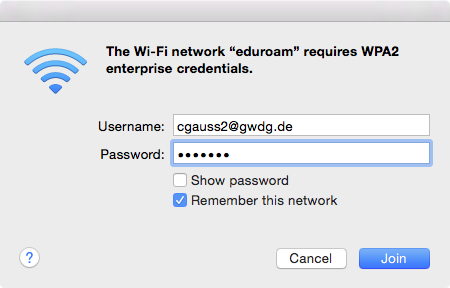
After confirming your data, a window opens, asking you to accept a certificate.

Click the button in the bottom left corner to see the certificate's details, then check “always trust radius1-edu.gwdg.de” top left or click on the arrow “Trust” and mark “When using this certificate”: “Always Trust”. In both cases, confirm your settings with the “Continue” button. The certificate window should look like this:

Setup of Eduroam from Outside the Network
First, open the Network settings in the System Preferences and disable Wi-Fi.
- open System Preferences → Network
- select “Wi-Fi” from the list on the left
- click on the button “Turn Wi-Fi Off”.
Now you can add a new network:
- click on the button “Advanced…”
- select “Wi-Fi”
- click on the plus sign (+) to add a new network.
Fill in your details in the new window as follows:
- Network name: Eduroam
- Security: WPA2 Enterprise
- Mode: Automatic
- Your user name and password
- click “OK” to confirm
As soon as a connection to Eduroam is available, you will be asked for your password again. Additionally, accept the certificate “radius1-edu.gwdg.de” (see above).
GuestOnCampus
GuestOnCampus, the guest network of GÖNET, can be used by guest users of the SUB and guests with event vouchers. Students and staff can also log in with their e-mail address and password, but should preferably use the encrypted WLAN eduroam.
Further information about GuestOnCampus can be found here. If necessary, you can follow the instructions for creating event vouchers (not yet available in English) and WLAN sponsoring.
Login
To log in, select the network GuestOnCampus from the WLAN menu in the menu bar. A login window will open, which allows you to enter your e-mail address as the username, and your password.

By clicking on “Accept Policy & Login”, your device will connect to the network.
If the login window does not open automatically, please open https://wlan.gwdg.de in your browser.
GoeMobile via Web Interface
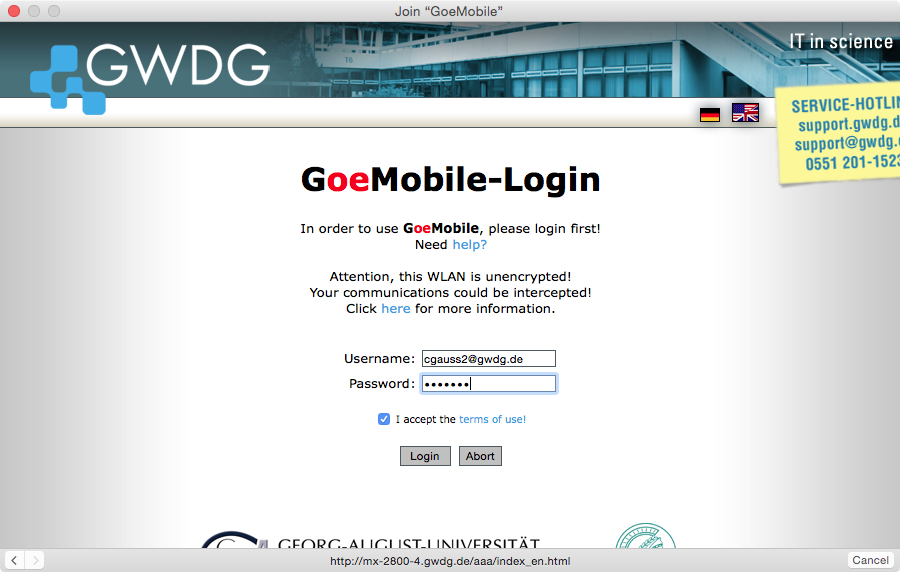
As an alternative to eduroam, it is also possible to simply log in with a web browser. An important limitation, however, is that with an authentication via Web browser, the connection is not encrypted. Thus with the transfer of sensitive data (online banking, mail, etc.) you must be careful to use only encrypted protocols (ie https, POP3/IMAP over TSL / SSL, etc.). An encrypted connection to GoeMobile is possible via a VPN client (see below).
After selecting the network “GoeMobile” in the Wi-Fi menu, a window with the login form for GoeMobile should open automatically. Here you can enter your GWDG or student account data. Additionally, you have to check the box to confirm that you have read and accepted the terms of use.
GoeMobile via VPN
To establish an encrypted VPN connection, you must be connect to GoeMobile first. Enable Wi-Fi and choose the network “GoeMobile” from the Wi-Fi icon in the menu bar. Now the VPN connection can be established. For detailed instructions for VPN, see VPN.
Typical Problems
• Wi-Fi cannot find the GoeMobile or Eduroam network.
On the page www.goemobile.de you can find information on the locations of the access points. You will also find a lot more information and tips concerning problems with the Wireless LAN.
• Firefox reports an invalid certificate and does not load any website.
You must install the root certificate of Deutsche Telekom which you can download at ca.gwdg.de.
For issues concerning the Mac you can contact our Mac helpline. For questions specifically about Wireless LAN (Where exactly are the access points? Why is the connection so slow?, etc.), please contact the GoeMobile support.